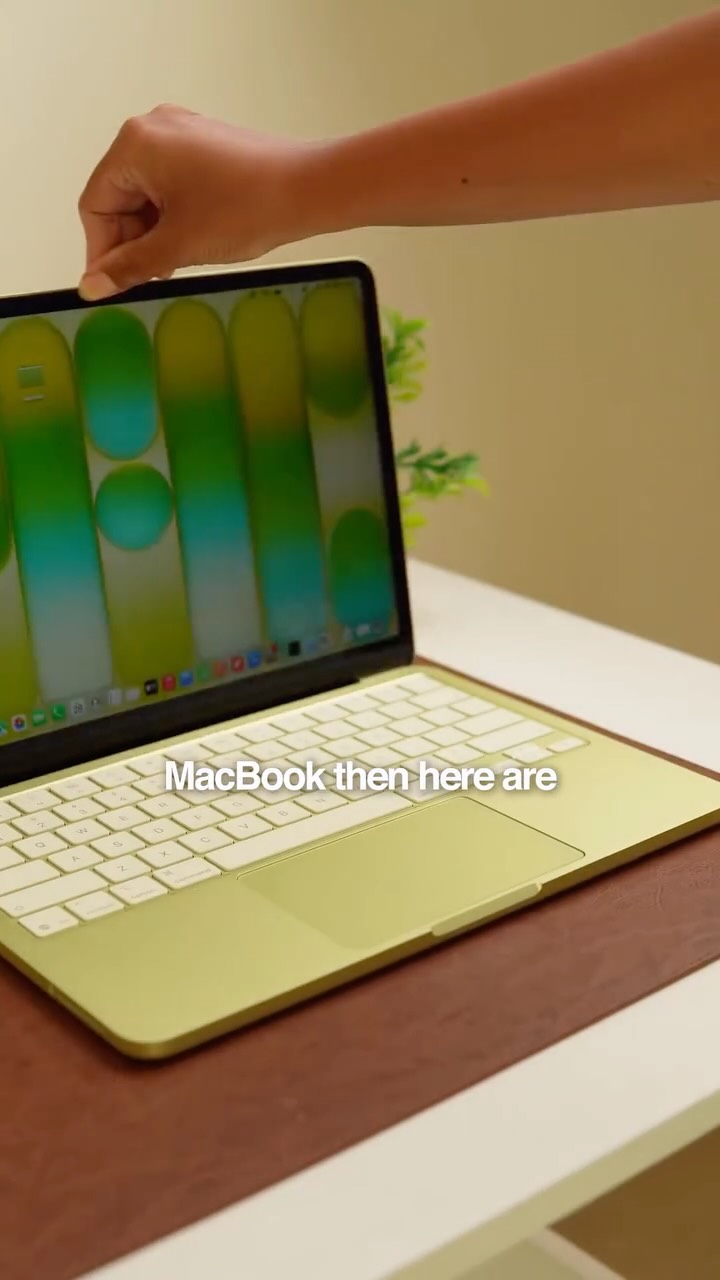
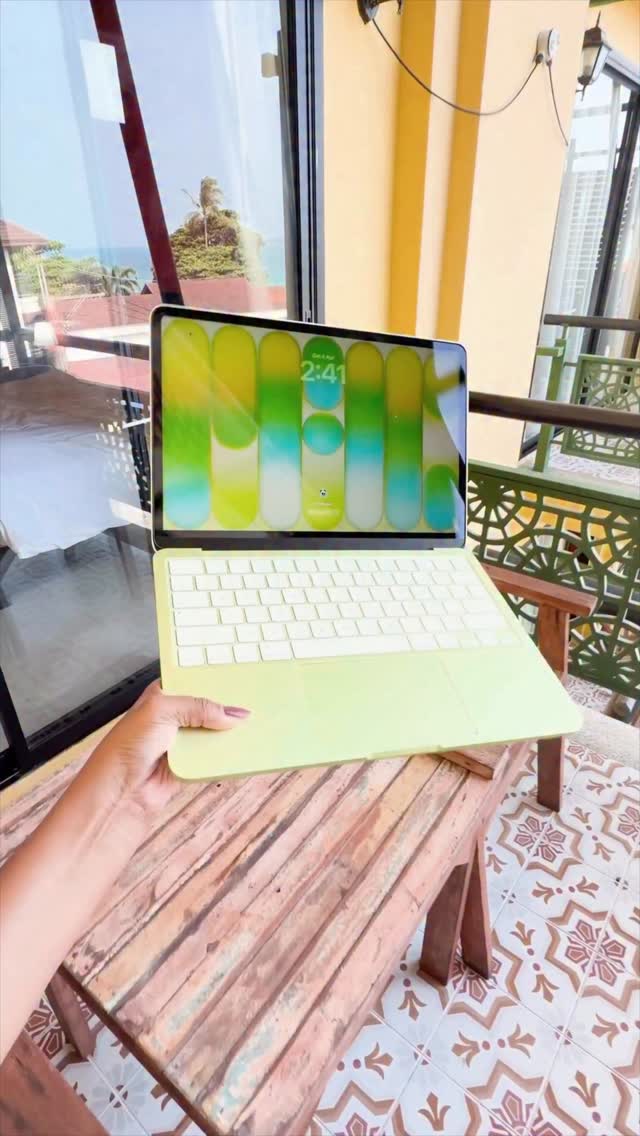
5 MacBook settings you need to change immediately! Here you go: 1. Show Path Bar Open Finder → View → Turn on Show Path Bar 2. Add AirDrop to Toolbar Finder → Right click on toolbar → Customize Toolbar → Drag AirDrop icon in 3. Tap to Click System Settings → Trackpad → Enable Tap to Click 4. Dock Magnification System Settings → Desktop & Dock → Increase Magnification size 5. Hot Corners System Settings → Desktop & Dock → Scroll down → Hot Corners → Set each corner to any action you want Enjoy these settings and follow for part 2. #techreels #macbooktips #iphonehacks #techtipsandtricks #reelsoninstagram
 112
112  1
1 This post was published on 30th April, 2026 by Kirti on her Instagram handle "@techwithkirti (Kirti Kumari)". Kirti has total 336.7K followers on Instagram and has a total of 416 post.This post has received 112 Likes which are lower than the average likes that Kirti gets. Kirti receives an average engagement rate of 0.15% per post on Instagram. This post has received 1 comments which are lower than the average comments that Kirti gets. Overall the engagement rate for this post was lower than the average for the profile. #iphonehacks #reelsoninstagram #techreels #techtipsandtricks #macbooktips has been used frequently in this Post.
54 5  16-06-2026 124 4 11-06-2026 77 2 11-06-2026 198 4 10-06-2026 88 3 09-06-2026 70 1 22-05-2026 133 4 21-05-2026 76 1 20-05-2026 150 2 17-05-2026 1.3K 17 14-05-2026 82 5 12-05-2026 138 3 02-05-2026 1.4K 129 29-04-2026 102 16 28-04-2026 65 2 24-04-2026 129 1 05-04-2026 460 9 02-04-2026 540 6 31-03-2026 200 86 30-03-2026 2.7K 1 27-03-2026 130 2 23-03-2026 2.6K 42 19-03-2026 493 3 17-03-2026 267 1 12-03-2026 149 5 12-03-2026 121 2 10-03-2026 379 7 06-03-2026 118 2 05-03-2026 310 4 02-03-2026 608 12 26-02-2026 1.2K 12 26-02-2026 569 9 25-02-2026 513.6K 73.2K 24-02-2026 331 6 23-02-2026 5.8K 3.8K 20-02-2026 511 32 15-02-2026 1.0K 11 12-02-2026 2.0K 15 06-02-2026 551 18 04-02-2026 667 15 02-02-2026 738 4 01-02-2026 298 96 28-01-2026 159 1 25-01-2026 3.0K 35 21-01-2026 238 5 19-01-2026 242 4 14-01-2026 257 3 05-01-2026 337 1 22-12-2025 13 0 22-12-2025 5.3K 7 21-12-2025 217 18 19-12-2025 1.1K 13 15-12-2025 47 1 15-12-2025 330 1 14-12-2025 299 6 13-12-2025 304 2 10-12-2025 611 4 10-12-2025 62.5K 167 09-12-2025 988 22 02-12-2025